
How Do I Use Song Level Targeting
If you’re an artist whose songs fall into multiple styles and genres, you can now promote all your songs at the same time to different artist targets using the Song-Level Targeting feature. This is an optional feature in addition to Standard Targeting. Instead of all songs being targeted to listeners of one main list of Artist Targets, you can now use Song-Level Targeting on any or all of your individual songs.
You can access and utilize this feature, from the Campaign Settings menu choose the Song-Level Targeting page. You will see a list of all your live songs with an option to edit each.
To begin your song’s targeting, you can click the Blue Edit Targets link to the right of your song title.

This will open the song’s editing options, where you can begin selecting the artists whose listeners you want your song to target. You can add up to 30 artists per track.
To add targets, either enter artist names manually in the Search For Artist To Target field, or use the Suggested Targets section below to automatically generate and add recommended artists.
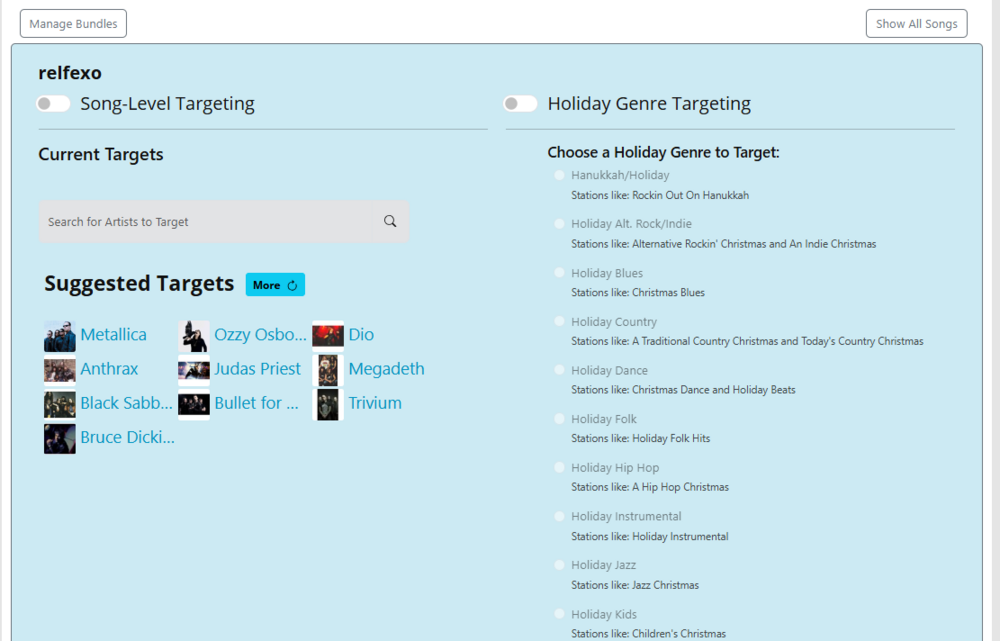
Once you’ve finished adding artists and are satisfied with your list, you’ll need to enable Song Level Targeting. To do this, toggle the Song Level Targeting switch (top left of the song edit window) to the ON position.
Once enabled, the song will begin targeting listeners based on the specific artists you’ve selected.
After activation, any updates you make to your artist targets will apply in real time. There is no need to turn the feature off and back on for changes to take effect.
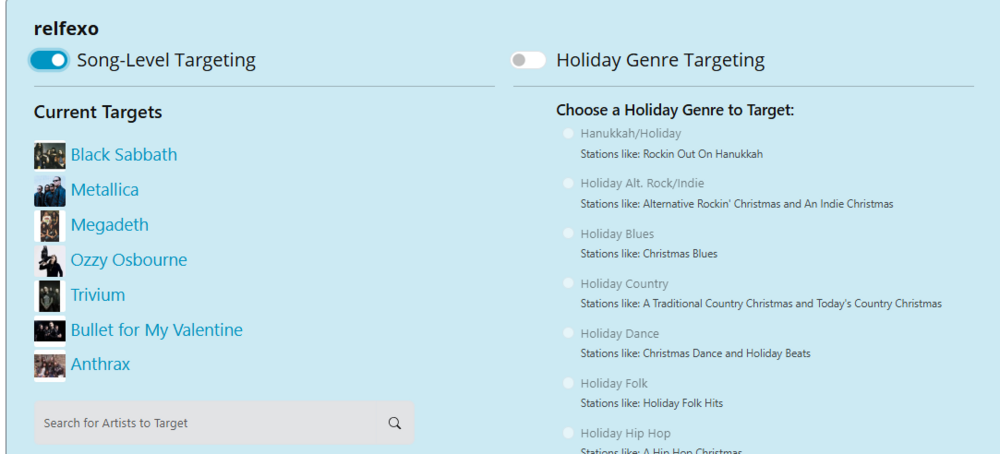
If you want to disable the Song-Level Targeting, you need to toggle the Song Level Targeting switch to OFF
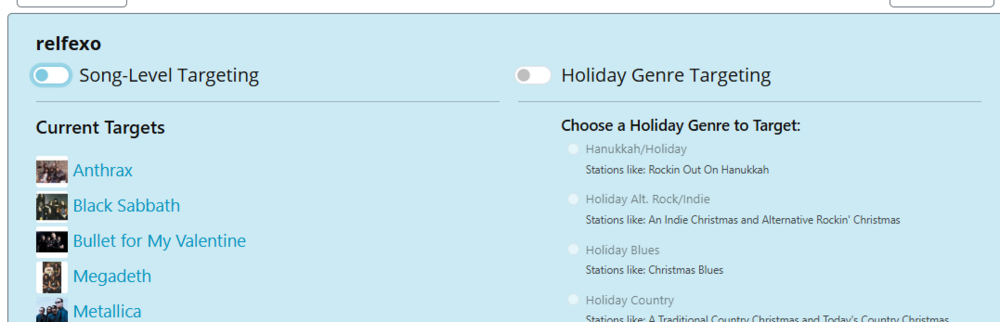
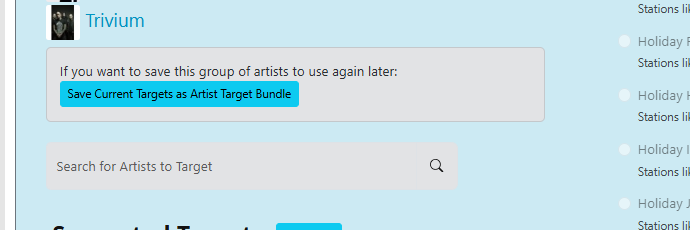
If you want to use the exact artist selections you have just chosen on another one of your songs, you can now save those artist target selections as a Bundle. Just click on Save Current Targets as Artist Target Bundle. The list of artists will then be saved.
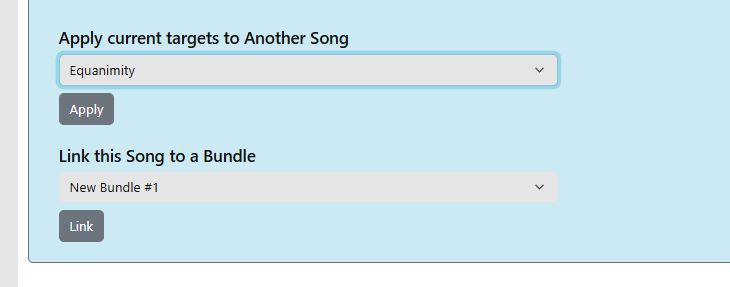
If you don't want to save them as a Bundle but want to just apply them to another song as a starting point, in the bottom right of the song edit window use the Apply current targets to Another Song drop down menu. You can also utilize the Link this Song to a Bundle drop down menu to link previously saved Bundles easily to your song.
Multiple Bundles can be created, edited, and then easily linked to other songs from your list on a new page called Manage your Artist Target Bundles. You can get there by clicking the link in the Campaign Settings Menu or button on the Song-Level Targeting page
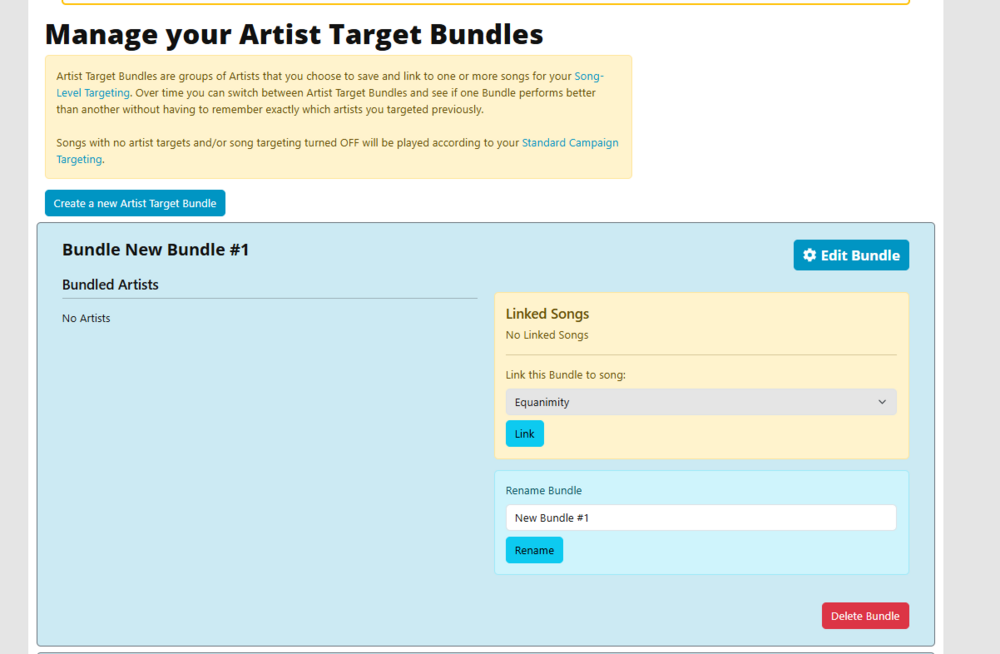
From here, you can create, edit, rename, delete, and link your Bundles to songs. You can also view exactly which Bundles are linked to each song.
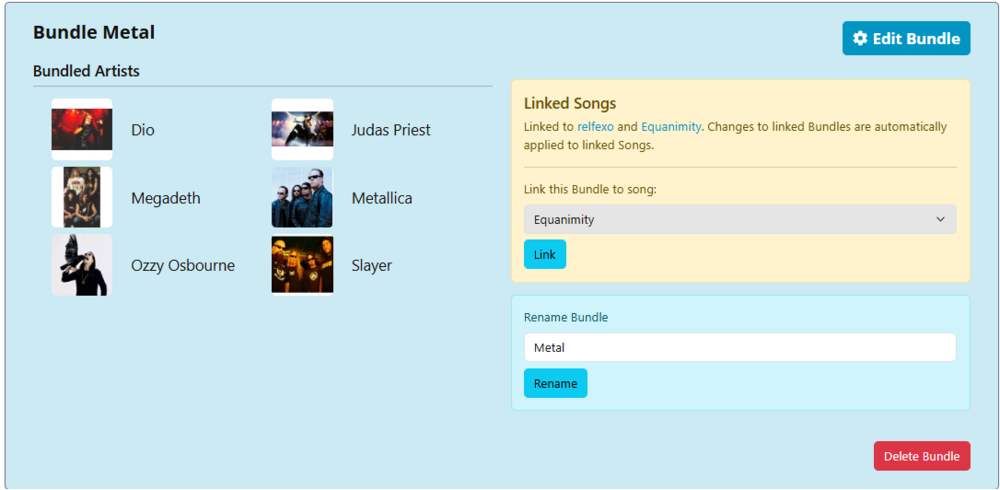
Linking your saved Bundles to songs makes it easy to manage and update targeting across multiple tracks at once. For example, if a Bundle is connected to four of your songs, any changes made to that Bundle will automatically update the targeting for all four songs—no need to edit each song individually.
Keep in mind that your Artist Targets list plays a key role in determining both your listeners and your play rate. Each selected Artist Target represents a group of Jango Radio listeners who may be served your music within their Jango.com station playlists. Songs promoted with applied play credits are then played alongside tracks by your chosen Artist Targets for those specific listeners.
For best results, choose artists that closely match your music in sound and style. This helps ensure your play credits are used efficiently and your songs are delivered to the most relevant listeners and potential fans on Jango Radio.